7 Windows Backup Software Options for Files, Images, and Recovery
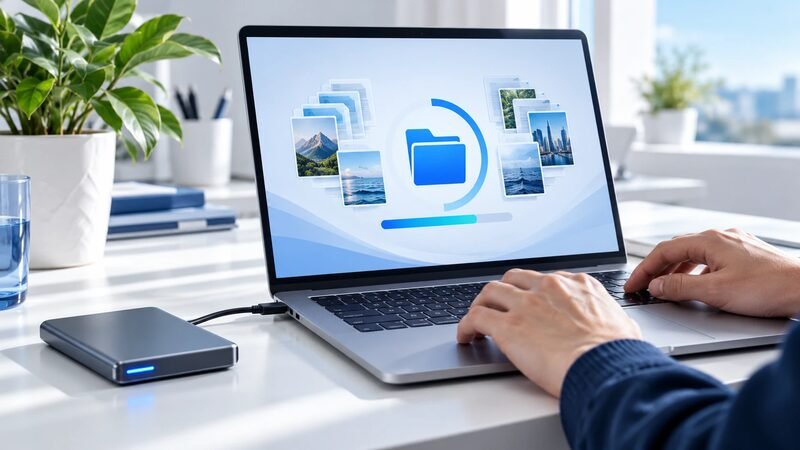
Windows backup software protects files, applications, settings, or complete systems against deletion, damage, hardware failure, and attacks. The right product depends on what must be recovered.
File backup restores individual documents. Image backup can rebuild an operating system, applications, settings, and data. Centralized endpoint backup lets administrators manage protection across many machines.
A backup is useful only when restoration works. CISA advises organizations to maintain offline, encrypted backups and test their availability and integrity regularly.
Windows Backup Software at a Glance
The seven options span consumer features, commercial imaging, and centralized endpoint protection.
Diagram
Windows Backup Software at a Glance
- Windows Backup and File History
- Veeam Agent for Microsoft Windows
- Macrium Reflect X Workstation
- Acronis Cyber Protect
- EaseUS Todo Backup Workstation
- AOMEI Backupper Workstation
- UrBackup
| Product | Best fit | Recovery scope | Starting position |
|---|---|---|---|
| Windows Backup and File History | Personal files and settings | Files, preferences, and previous versions | Included with Windows |
| Veeam Agent for Microsoft Windows | Technical users and small environments | Files, volumes, and bare metal | Free edition available |
| Macrium Reflect X Workstation | Business-critical individual PCs | Images, files, and bare metal | Per-seat; check regional price |
| Acronis Cyber Protect | Managed business endpoints | Backup, recovery, and security controls | Customized licensing |
| EaseUS Todo Backup Workstation | Small-business PCs | Files, systems, disks, and cloning | Public store pricing varies by term |
| AOMEI Backupper Workstation | Small-business Windows devices | Backup, sync, clone, and recovery | From $49.95 a year for one PC |
| UrBackup | Self-hosted network backup | File and Windows image backups | Free and open source |
Prices and product terms were checked in October 2026. Confirm currency, renewal, storage, and business-use rights before purchase.
1. Windows Backup and File History
Windows includes two relevant options. Windows Backup syncs selected folders and preferences through a personal Microsoft account. File History saves file versions to an external drive or network location.
Windows Backup focuses on consumer devices. Microsoft states that work or school accounts cannot use the app. A free Microsoft account includes 5GB of OneDrive storage.
File History protects personal folders and previous versions. It does not provide the centralized image recovery that many businesses require.
Best for: Personal devices needing basic file copies, settings migration, or previous versions.
Watch for: Cloud synchronization is not a complete workstation recovery plan. Deleted or encrypted files can also synchronize.
2. Veeam Agent for Microsoft Windows
Veeam Agent can protect files, volumes, or complete Windows machines. Recovery options include individual files and bare-metal restoration.
The Free edition supports one backup job targeting a local drive, network share, or Veeam repository. Paid editions add capabilities and support.
Veeam can fit technical users already operating network or repository storage. The free job limit requires careful destination planning.
Best for: IT teams wanting image-based recovery and a free entry option.
Watch for: A free agent on each device is not centralized governance. Confirm management, repository, and support requirements.
3. Macrium Reflect X Workstation
Macrium Reflect X Workstation is licensed for commercial Windows workstations. It supports backup images, encryption, recovery media, and hardware-independent recovery workflows.
Each protected workstation requires a seat under Macrium’s licensing policy. Check the current price for your region before budgeting.
Macrium separates home, standalone business, and centralized products. SiteBackup is the vendor’s centralized option for larger environments.
Best for: Individual business-critical PCs needing dependable image recovery.
Watch for: Macrium has moved business customers to Reflect X. Check the support status of any older Reflect 8 installations.
4. Acronis Cyber Protect
Acronis Cyber Protect combines business backup with cybersecurity and endpoint controls. It supports cloud and on-premises deployments across endpoint and server workloads.
Centralized policies, malware protection, patching, and recovery features can reduce tool sprawl. Acronis also offers Backup Advanced for deeper data-protection needs.
Licensing depends on edition, workload, storage, and delivery model. Buyers should request a written quote covering cloud storage and protected devices.
Best for: Businesses seeking centrally managed backup and endpoint security together.
Watch for: Bundled protection can overlap existing security tools. Compare capabilities, retention, and response workflows carefully.
5. EaseUS Todo Backup Workstation
EaseUS Todo Backup Workstation targets commercial desktops and laptops. It supports file, system, disk, partition, and email backups.
The product also supports disk cloning and restoration to different hardware. EaseUS Backup Center can manage jobs across multiple machines.
Vendor store pages show different offers and license terms. Confirm whether the displayed price covers annual, perpetual, or promotional licensing.
Best for: Small businesses wanting broad local backup and migration features.
Watch for: Public pricing presentation can be confusing. Verify renewal, upgrades, cloud capacity, and centralized-management costs in writing.
6. AOMEI Backupper Workstation
AOMEI Backupper Workstation provides backup, synchronization, cloning, and recovery for business PCs. The vendor lists a one-PC subscription at $49.95 a year, with a lifetime license at $79.95.
The Workstation edition carries business-use rights. AOMEI also sells higher editions for servers, technicians, and centralized management.
It can suit a small company protecting a few independent machines. Larger fleets need a management and reporting plan.
Best for: Small-business PCs needing an affordable commercial license.
Watch for: Check whether the selected license is annual or lifetime. Also confirm upgrade and support entitlements.
7. UrBackup
UrBackup is an open-source client-server backup system. It combines file backups with Windows image backups while protected machines remain online.
Its Windows images can use VHDX or supported raw formats. File-level deduplication can reduce repeated storage across clients.
UrBackup offers strong control without per-device software fees. The organization must operate, secure, monitor, and test the server.
Best for: Technical teams wanting self-hosted network backup with open-source software.
Watch for: Free software still carries infrastructure and labor costs. Document recovery procedures before depending on it.
Which Backup Type Do You Need?
Start with the required recovery outcome, then choose the matching backup method.
File Backup
Choose file backup when documents and user folders are the priority. It provides fast, granular restoration with lower storage requirements.
Image Backup
Choose image backup when the whole machine must return quickly. Images can include Windows, applications, settings, and files.
Cloud Backup
Cloud storage provides geographic separation and remote access. Review upload speed, retention, egress costs, encryption, and account recovery.
Local Backup
Local disks or network storage can restore quickly. A permanently connected destination remains exposed to theft, failure, and some attacks.
Centralized Endpoint Backup
Central management helps administrators enforce schedules, monitor failures, and prove coverage. It becomes important as device counts rise.
Build a Recoverable Windows Backup Plan
Software selection covers only part of a dependable recovery process.
Define Recovery Objectives
Recovery point objective states how much recent data can be lost. Recovery time objective states how long restoration may take.
Use Multiple Copies
Keep production data plus separate backups on different media. Store at least one protected copy away from the primary environment.
Isolate a Backup Copy
CISA recommends offline, encrypted backups. Immutability or protected retention can also reduce unauthorized deletion.
Encrypt Data and Protect Keys
Encryption fails when keys are lost or exposed. Store recovery keys separately and test authorized access.
Create Recovery Media
Image recovery may require bootable media and storage drivers. Update the media when hardware or backup software changes.
Test Complete Restoration
Restore files monthly and a complete machine periodically. Record duration, missing drivers, credentials, and manual steps.
Backups support recovery from ransomware incidents, but they do not prevent initial access. Endpoint security, patching, and identity controls remain necessary.
They also reduce part of the impact from a data breach. Backups cannot reverse data theft or disclosure. Wider cybersecurity statistics keep those incident types separate for the same reason.
Windows Backup Buying Checklist
Ask each vendor to demonstrate the required recovery alongside backup creation.
- Supported Windows editions and hardware
- File, volume, image, and bare-metal recovery
- Recovery to different hardware
- Local, network, object, and cloud destinations
- Encryption and key ownership
- Immutable or offline-copy options
- Central policy and failure alerts
- Retention and deletion controls
- Bandwidth throttling and deduplication
- Restore testing and verification
- Business-use licensing
- Support response and product lifecycle
- Full renewal and storage costs
Test the final candidates on ordinary and business-critical machines. Include a failed disk, deleted folder, and isolated recovery scenario before standardizing on Windows backup software.
Frequently Asked Questions
Does Windows Include Backup Software?
Yes. Windows Backup protects selected consumer settings and OneDrive folders. File History saves versions to local or network storage.
Is Windows Backup Enough for a Business?
Usually not for complete recovery. Microsoft describes the app as consumer-focused and excludes work or school accounts.
What Is Bare-Metal Recovery?
Bare-metal recovery rebuilds a complete system on an empty or replacement drive. It can restore Windows, applications, settings, and data.
Is Cloud Sync the Same as Backup?
No. Sync prioritizes consistent files across locations, while backup preserves recoverable versions under defined retention rules.
How Often Should Teams Test Backups?
Test important file restores regularly and full recovery periodically. Frequency should reflect business risk and recovery objectives.
Resources
- CISA StopRansomware Guide
- CISA guidance for backing up business data
- Microsoft Windows Backup
- Microsoft File History
- Veeam Agent for Microsoft Windows
- Veeam Agent edition limits
- Macrium Reflect X Workstation
- Macrium Reflect X licensing
- Acronis backup platform
- EaseUS Todo Backup Enterprise
- AOMEI product store
- UrBackup